
HA Studio Pro
Setup Guide
Get HA Studio Pro connected to your Home Assistant in just a few minutes. Follow the steps below to configure the app and start building your custom dashboards.
Download the App
Install HA Studio Pro from the Apple App Store or Google Play Store on your iPhone, iPad, or Android device.


Open Home Assistant & Go to Your Profile
Open your Home Assistant instance in a browser. In the left sidebar, click your username / profile picture at the bottom left to open your User Profile.
http://homeassistant.local:8123 or your external URL if you have remote access configured.
Navigate to the Security Tab
Once on your profile page, click the Security tab at the top of the page. Scroll down until you see the Long-Lived Access Tokens section.
Create a Long-Lived Access Token
In the Long-Lived Access Tokens section, click Create token. Give it a name — for example, "HA Studio Pro" — then click OK.
Copy the token immediately — Home Assistant will only show it once. Paste it somewhere safe before closing the dialog.
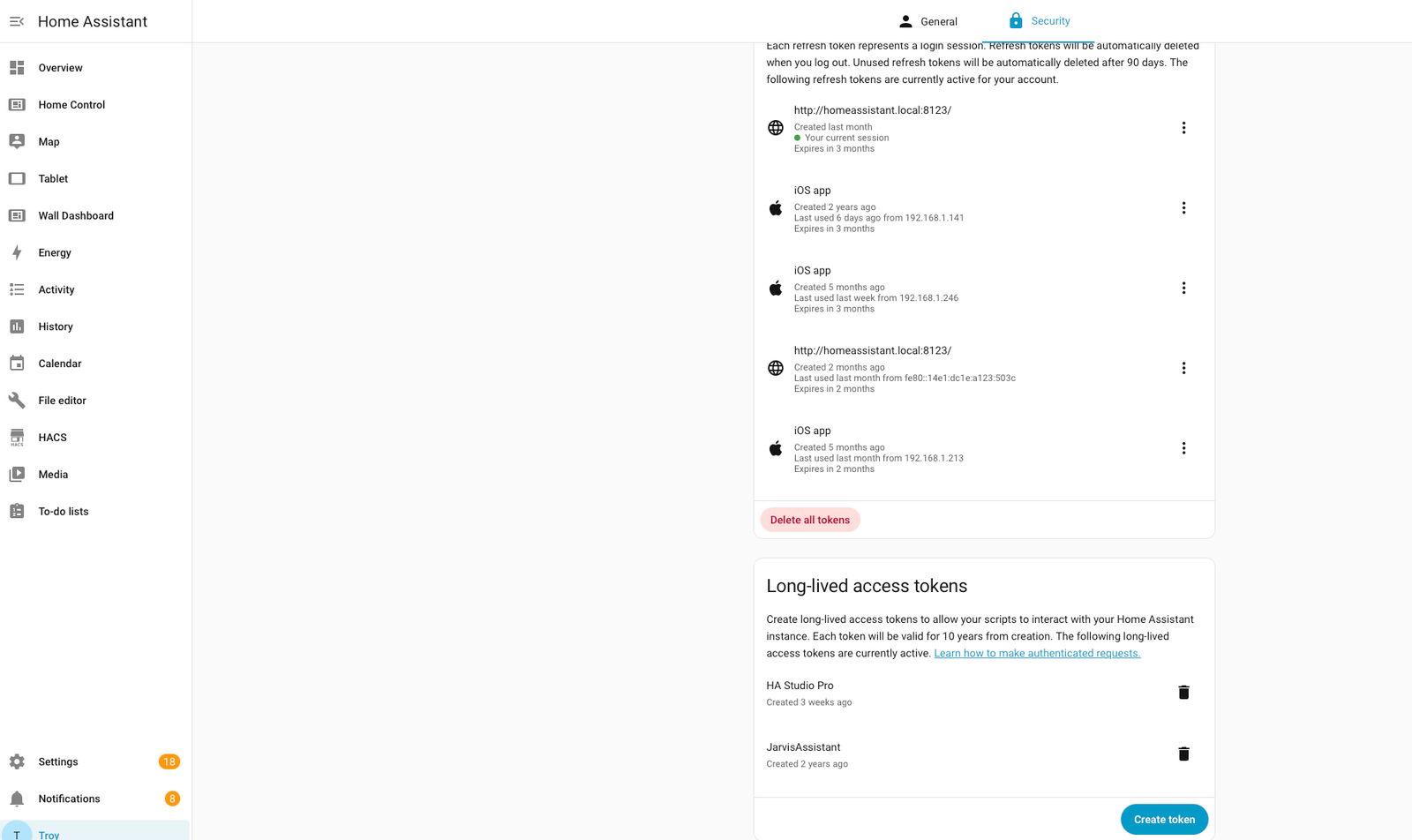
Home Assistant → Profile → Security → Long-Lived Access Tokens
Enter Your Home Assistant URL
Open HA Studio Pro on your device. On the connection screen, enter your Home Assistant URL. Use your local IP or hostname when on the same Wi-Fi network, or your external URL for remote access.
Common URL formats:
http://homeassistant.local:8123— local mDNS hostnamehttp://192.168.1.X:8123— local IP addresshttps://your-domain.duckdns.org— external / remote access
Paste Your Access Token
Paste the Long-Lived Access Token you copied in Step 4 into the token field in the app, then tap Connect.
HA Studio Pro will verify the connection to your Home Assistant instance. If successful, you'll be taken to the main dashboard screen.
Start Building Your Dashboard
You're connected! Tap any dashboard view to start customizing. Use the built-in drag-and-drop editor to add widgets, rearrange cards, and style everything to match your smart home aesthetic.
- 🏠 Add entity cards for lights, sensors, switches, and more
- 🎨 Choose from multiple dashboard themes including HUD, Modern, and Security views
- 🖨️ Monitor your Bambu Lab 3D printer in real time from a dedicated dashboard
- 🤖 Set up the built-in AI assistant to control your home with natural language
- 📷 Add camera feeds directly from your Home Assistant entities
Troubleshooting
Can't connect to Home Assistant?
Make sure your device and Home Assistant are on the same Wi-Fi network, or that
your external URL is reachable. Check that the URL includes the port
(e.g. :8123) if you haven't set up a reverse proxy.
Token not accepted?
Ensure you copied the full token without extra spaces. Tokens are long strings — it's easiest to paste directly from your clipboard. If it still fails, go back to Home Assistant, delete the old token, and create a new one.
Dashboard not loading entities?
Check that the account you generated the token for has access to the entities you want to display. In Home Assistant, go to Settings → People and confirm your user has the correct permissions.
Need remote access outside your home?
We recommend using Home Assistant Cloud (Nabu Casa) or a secure reverse proxy with HTTPS (e.g. DuckDNS + Let's Encrypt) for remote access. Once set up, just use your external URL in the connection screen.
Still Need Help?
Reach out to our team and we'll get you sorted out.
Digital Magicians Studios LLC
Email: info@digitalmagiciansstudios.com
Website: digitalmagiciansstudios.com